In CloseOut, you can manage your notifications based on your preferences. Whether you want to receive your notifications on your mobile, web app, or email, you can configure that in the User Settings section.
- Log into CloseOut.
- On the top right corner, click your profile icon and choose User Settings.
- In the User Settings section, choose Notification Settings.
- The list of predefined events for which you can configure notifications displays. By switching the toggle button, you can enable or disable notifications for a specific event. Hovering over the event and clicking on the three-dot icon, you can choose your preferred way of receiving notifications for a specific event.

Notification types:
- N/A Approval / Rejection - If you have sent the N/A request for some placeholder or folder, you will be notified about the answer. A notification will lead you to a specific document.
- N/A Request - If you are a Supervisor on a project, you will be notified that someone sent a not applicable request on a specific placeholder or folder.
- Rejected document - If you have uploaded a document, and it was rejected by your Supervisor, you will get a notification that will lead you to a specific document.
- User scheduled for the site - If you are scheduled for a site, you will get a notification.
- Project Site Lifecycle - Allows you to turn on the following notifications:
- New Site Added: get notified when a new site or multiple sites are created on all projects or projects of your choice.
- Site Closed: notifies you whenever a site is closed on all projects or only projects you select.
- Site Ready for Closure: get notified whenever a site is ready for closure (achieving a 100 % fulfilment of required documented placeholders).
- Site Reopened: get notified whenever an already closed site gets reopened by someone.
- Time rejected - If the time that you have clocked in on a specific project is rejected by your time validator, you will be notified.
- User un-scheduled for the site - If you are un-scheduled for a site, you will get a notification.
- Live VQA Meeting - sends a notification whenever you are booked for a Live VQA meeting.
- Members certificate warning - PM will get the notification that the member's certificate will expire. PM can set Custom notifications that are triggered on a specific number of days before the expiration day, or for a specific company.
- Milestone - allows you to turn on the following notifications regarding milestones:
- Previous milestone completed: sends a reminder notification to the person responsible for the next milestone that the milestone preceding their is complete.
- Milestone due date approaching: allows you to set the number of days to receive a daily reminder leading to the milestone due date.
- Document uploaded - You will be notified if the document is being uploaded on your site. In the Custom notification section, you can choose to get the notification just for the first document in a day, or for every document uploaded.
- Certificate warning - You will be notified if your Certificate is expiring. You can set Custom notifications that are triggered on a specific number of days before the expiration day.
- Shift time warning - PM and a Supervisor on a site will get the notification if someone is working longer hours than predefined. The time limit can be set through the Custom notification section.
When the notification arrives in your web app, it will be indicated with a red symbol on the bell icon in the upper right corner. By clicking on the bell icon, the list of notifications will open on the right side. You will be redirected to the precise folder/placeholder if the notification refers to a rejected photo or change of NA status by clicking on the individual notification.
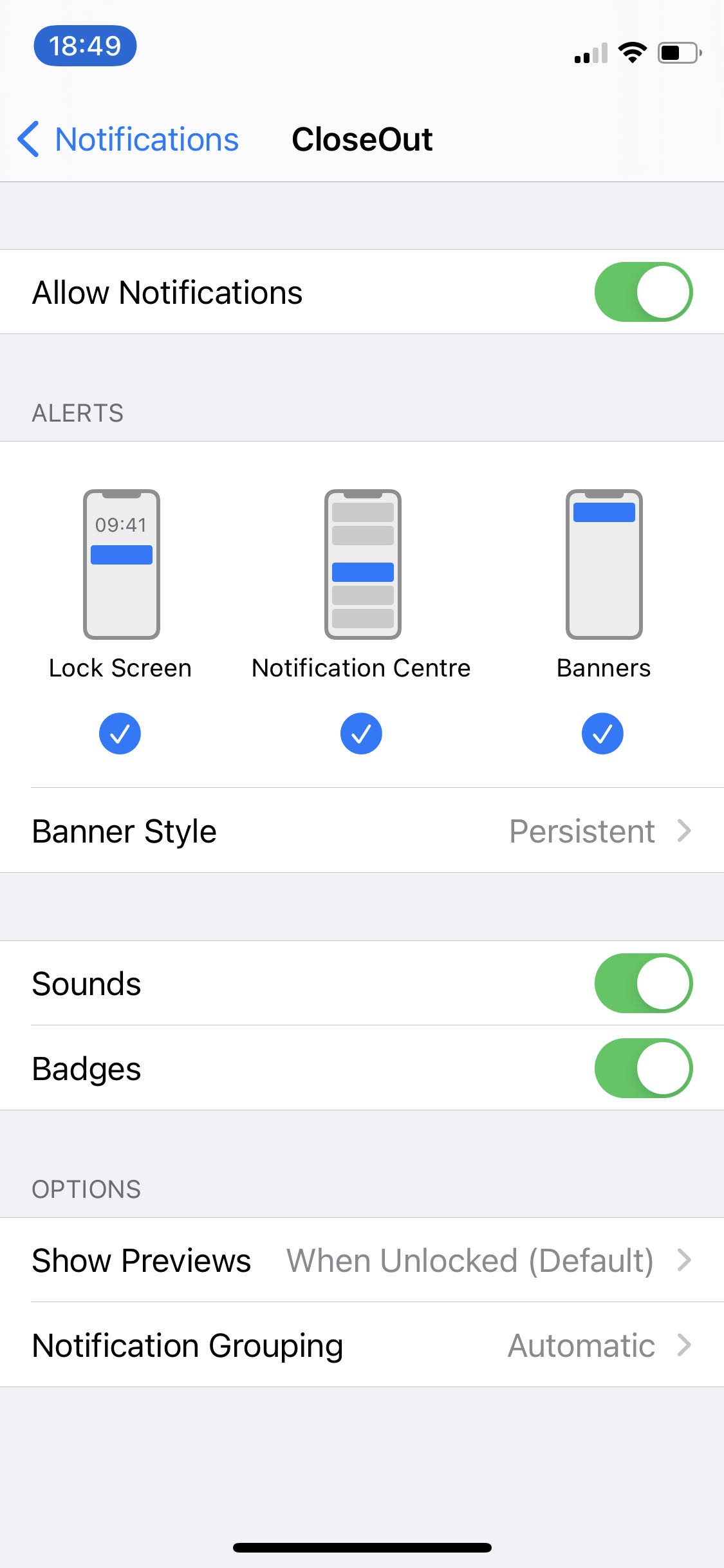
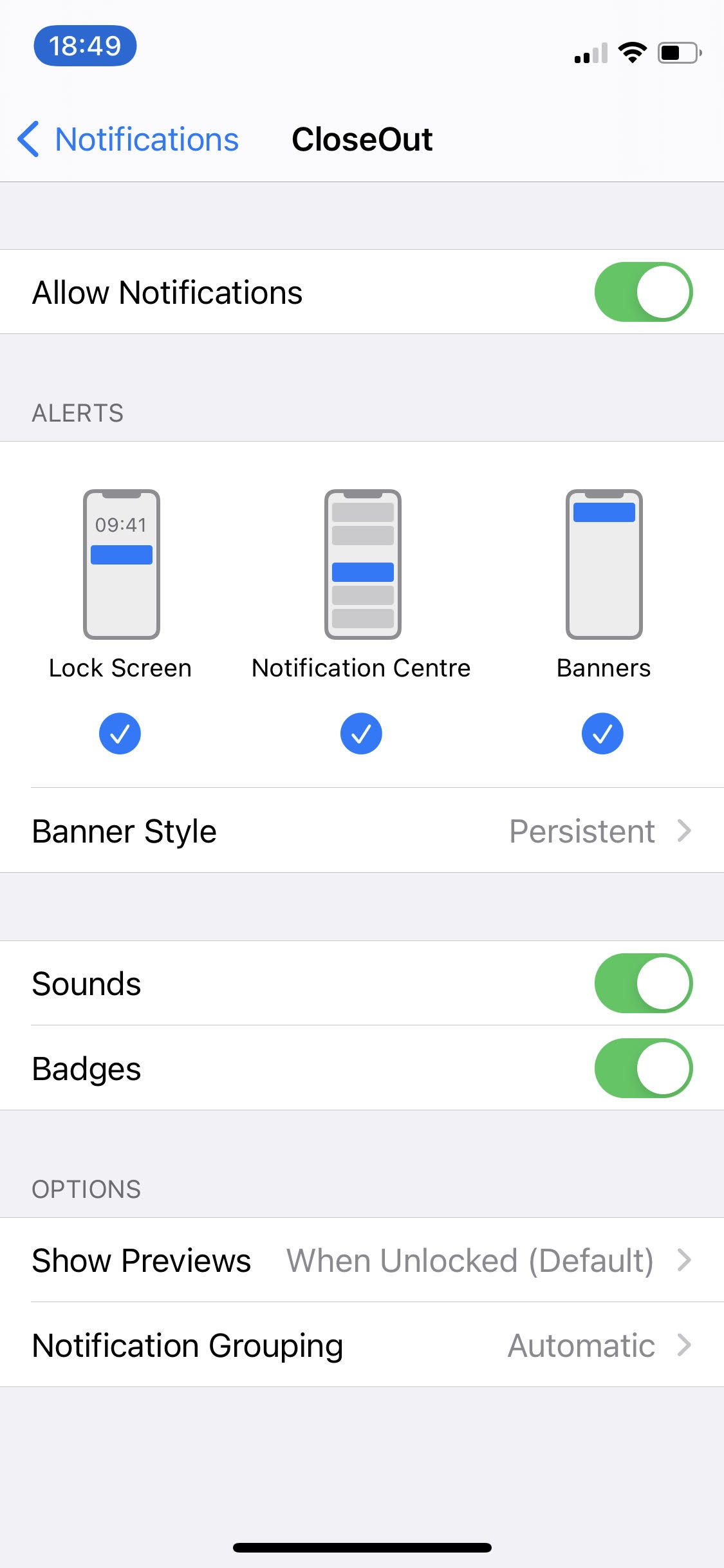
Additionally, you need to enable notifications in the Settings → Notification on your mobile device. Depending on your operating system, please refer to the screenshots below: